Beesy HD offers different angle of views with its reporting tool
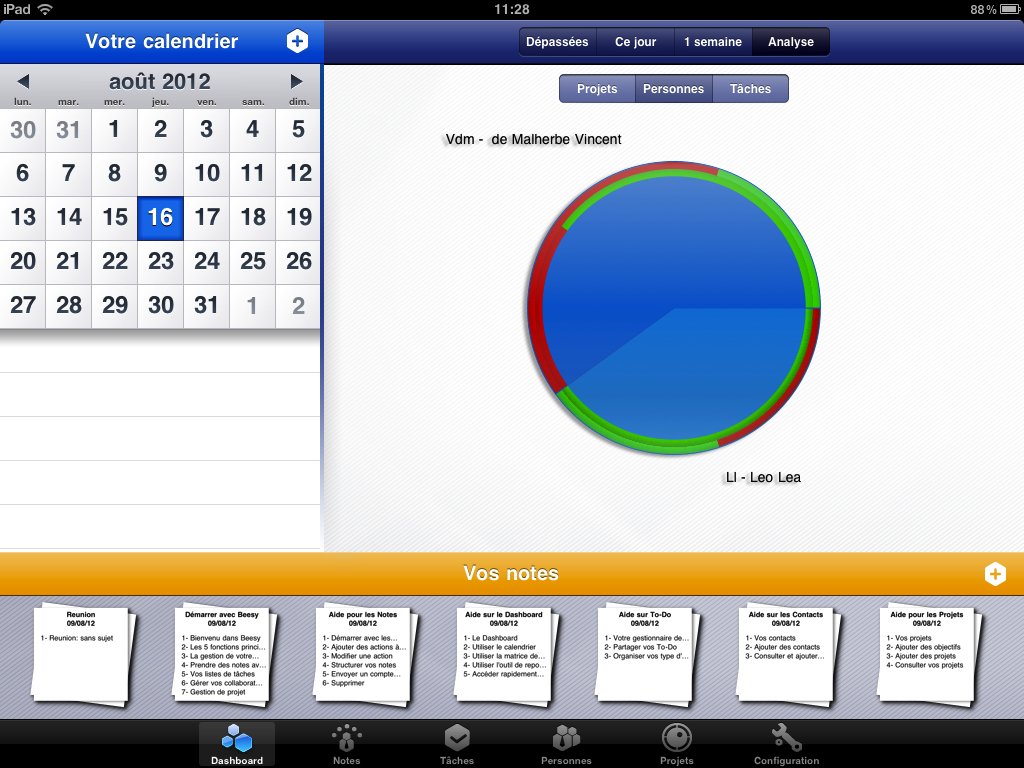
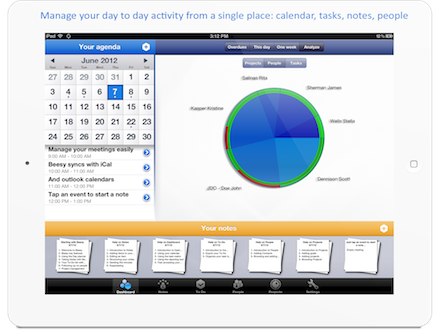
By clicking on the icon Dashboard and on the Analyze button on the top of the screen, Beesy HD allows its users to use its reporting tool to visualize their projects and persons evolved in them.
Manage your projectsBy selecting “Project” on your reporting tool, Beesy HD will define the time repartition of your work according to on-going projects. The functionality’s interest is to check if every time work is well split between the differents projects and if this amount of time is justified given the importance of every project. From this overview of projects, you can also zoom-in the differents parts of your business activity. You just need to select the part by clicking on it directly on the pie chart. In this way, you will have a different view of all the actors on the project. It will be possible to judge the impact of every single person on the given project. The main goals of this tool are :
In sum, this tool is a real task manager, which allows to handle differents tasks at the same time and make sure that you will spend the right amount of time on each one of them. |
 |
Adding the Eisenhower Matrix to its reporting tool, Beesy HD can be considerered as a complete task manager. On one side, the task management will help you to handle a unique task and its priority in order to ensure the completion of your work before the deadline fixed. On the other side, the priority management will help to step back from your activity to have a real overview of it. The key is to have a good global view of all your tasks at a given point to make sure that the correlation between priorities and work amount is logical.
Manage differents persons on your projectsBeesy’s reporting tool will also allow you to organize your work vision from the persons in your team. You just need to click on “Persons” button to have the repartition of the pie chart according to the amount for work and the number of tasks saved for a team member. As in the project visulization, you can click on each part of the pie chart to see in details the composition and the repartition of every member of your activity. Furthermore, you just need to stick your finger to one area to have more informations about the person – to know how many tasks are in process or done by this member – or the task – to know what it represents on the global work and how many actions are included in it. |
|